See exactly how it works
Step-by-step walkthroughs of the flows that make RAAV click — the real app screens, each action zoomed in and called out.
Send a program to an athlete
From the Workouts tab to a scheduled program in your athlete's hands — about a minute, start to finish.

Tap “Send program”
In the Workouts tab, tap Send program to start a new one.
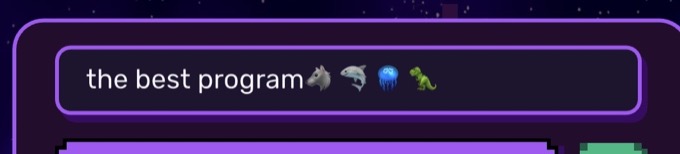
Name the program
Give the program a name you'll recognize.
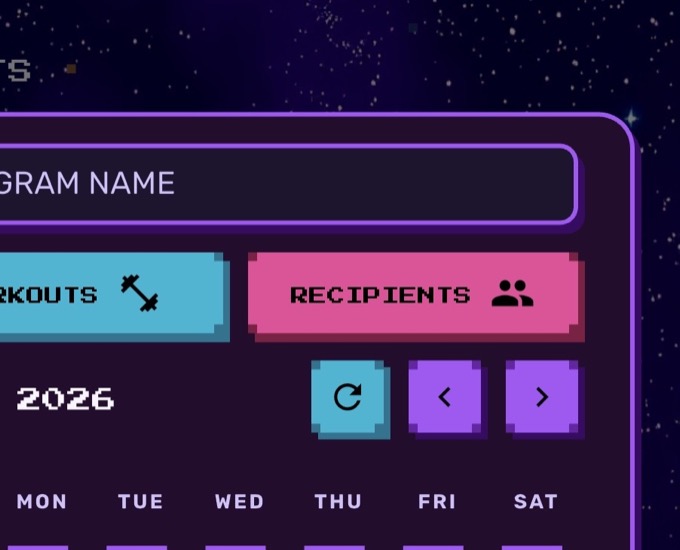
Open Recipients
Switch to the Recipients tab to choose who gets it.
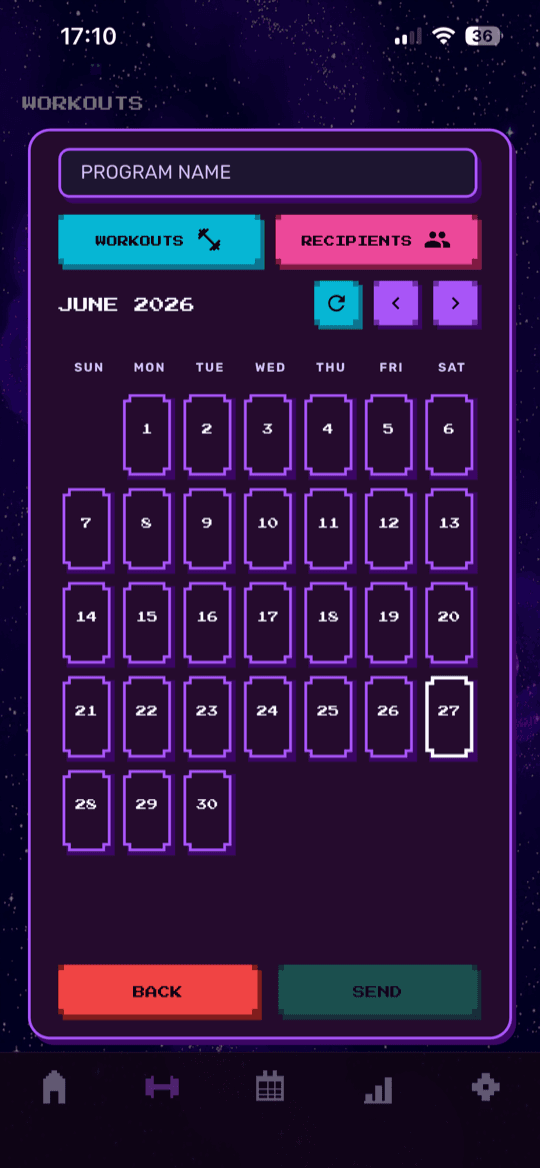
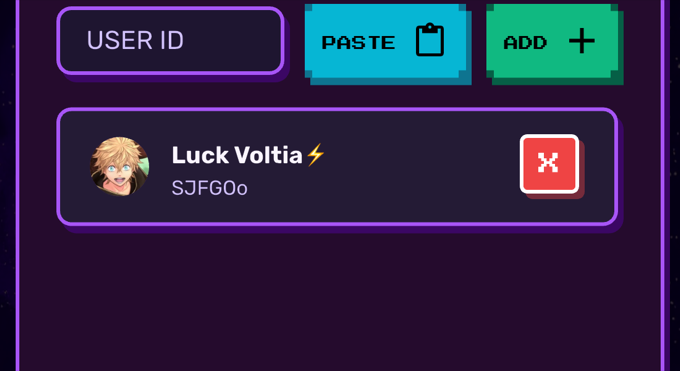
Add your athlete
Enter your athlete's 6-character code and add them to the recipient list.
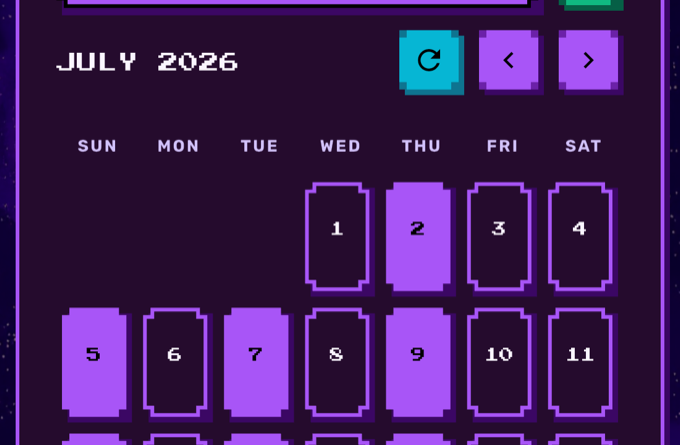
Pick workouts & dates
Select a workout, then tap every date you want it trained on across the weeks.
Send
Hit Send and the program is on its way.
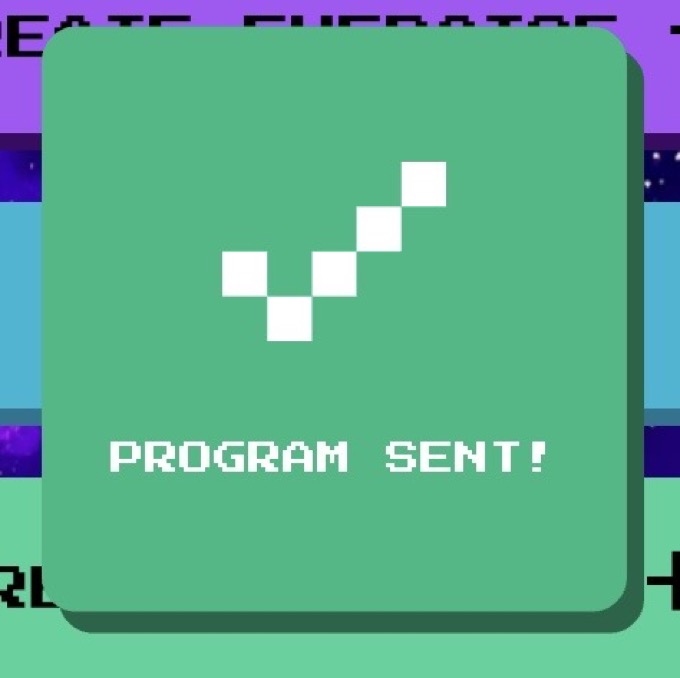
Program sent
That's it — it lands in your athlete's app instantly.
Create a workout
Build a reusable workout from scratch — exercises, sets, and all.
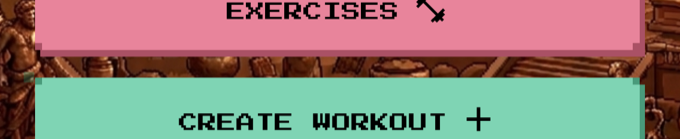
Tap “Create workout”
In the Workouts tab, tap Create workout.
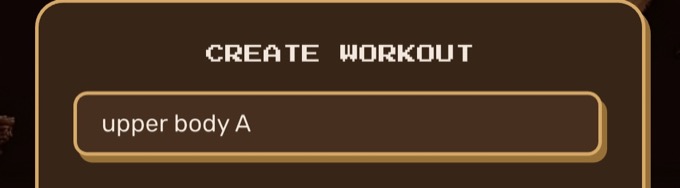
Name the workout
Give your workout a name.
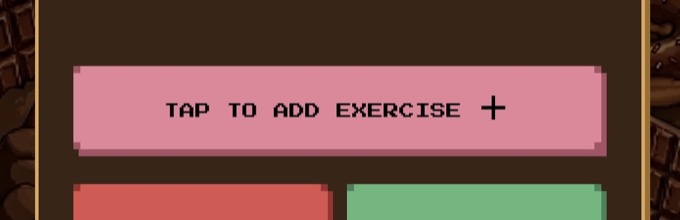
Add an exercise
Tap Add an exercise to open the picker.
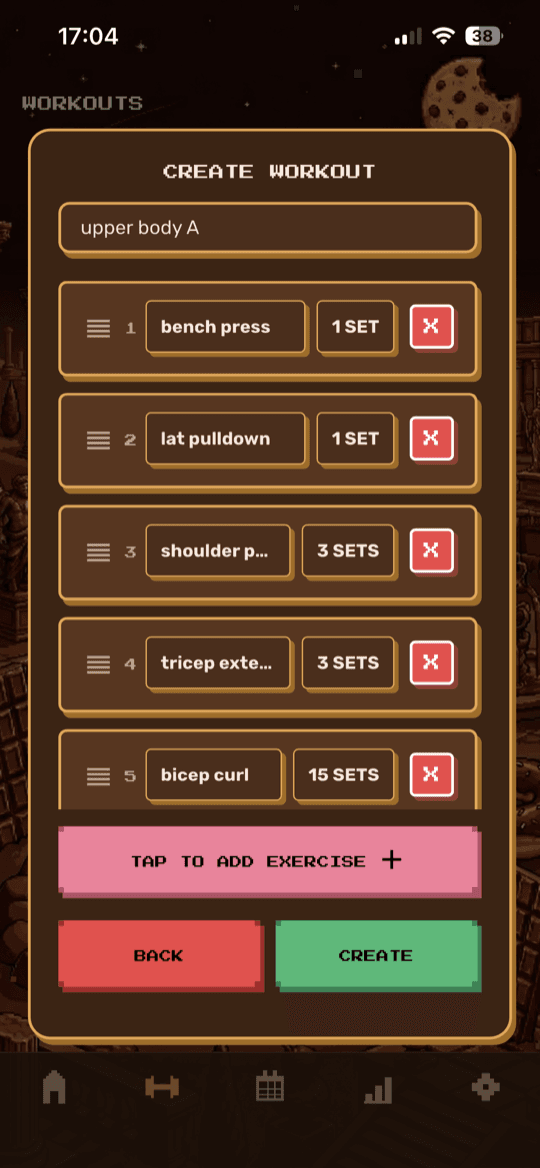
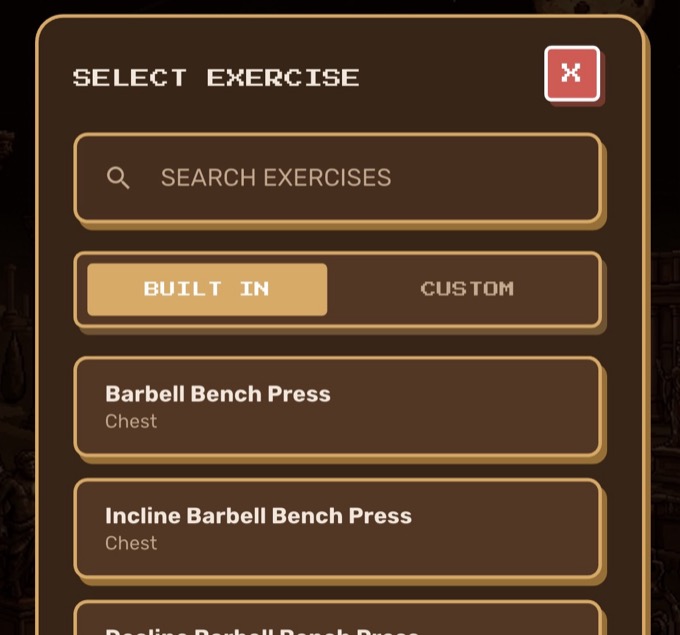
Pick an exercise
Choose a ready-made exercise or one of your own.
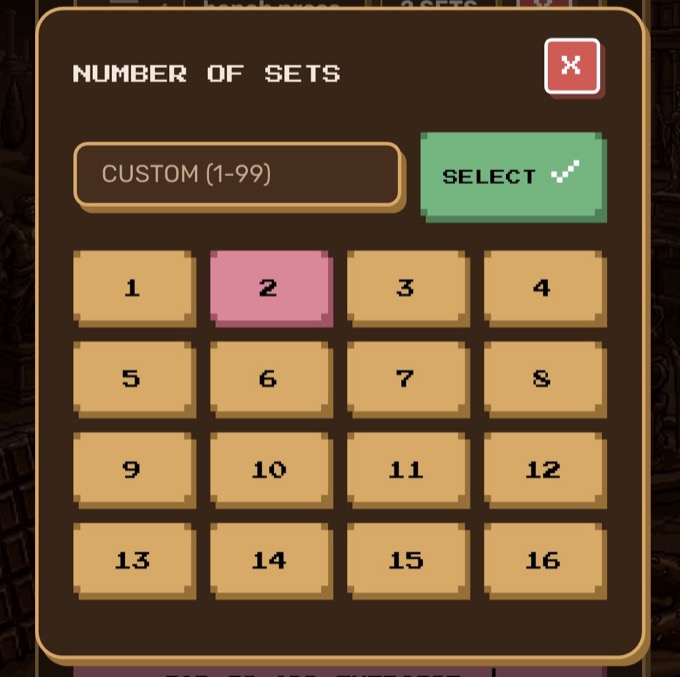
Set the sets
Pick how many sets that exercise should have.

Create
Tap Create to save the workout.
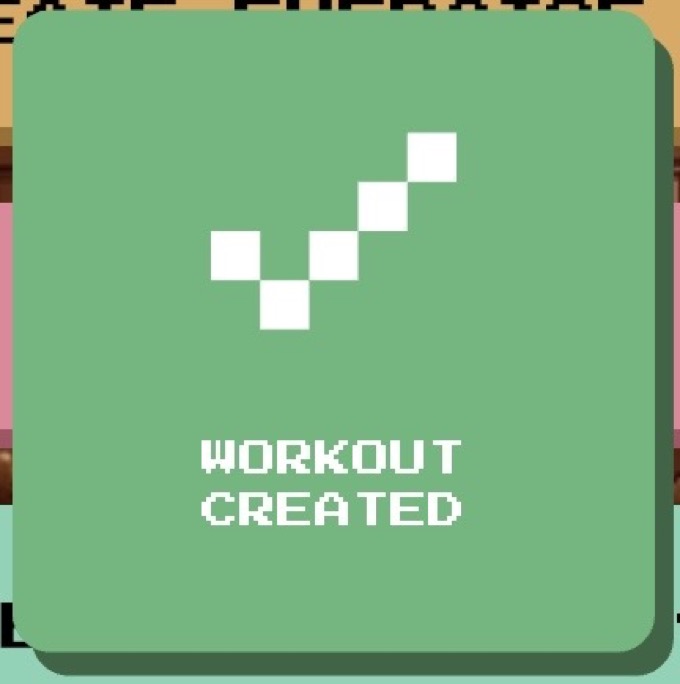
Workout created
Done — it's ready to run, reuse, or send in a program.
Accept a program from your coach
A coach sent you a plan? Here's how it gets onto your calendar.
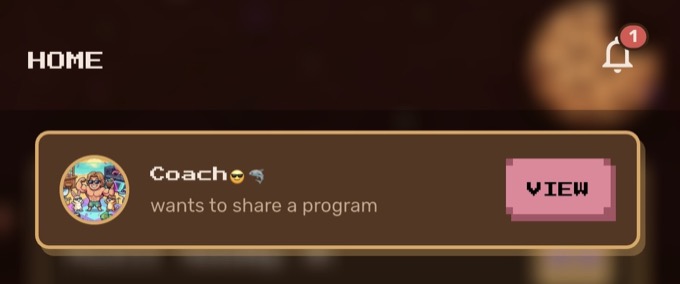
Open the invite
A coach's program appears on your home screen — tap View to open it.
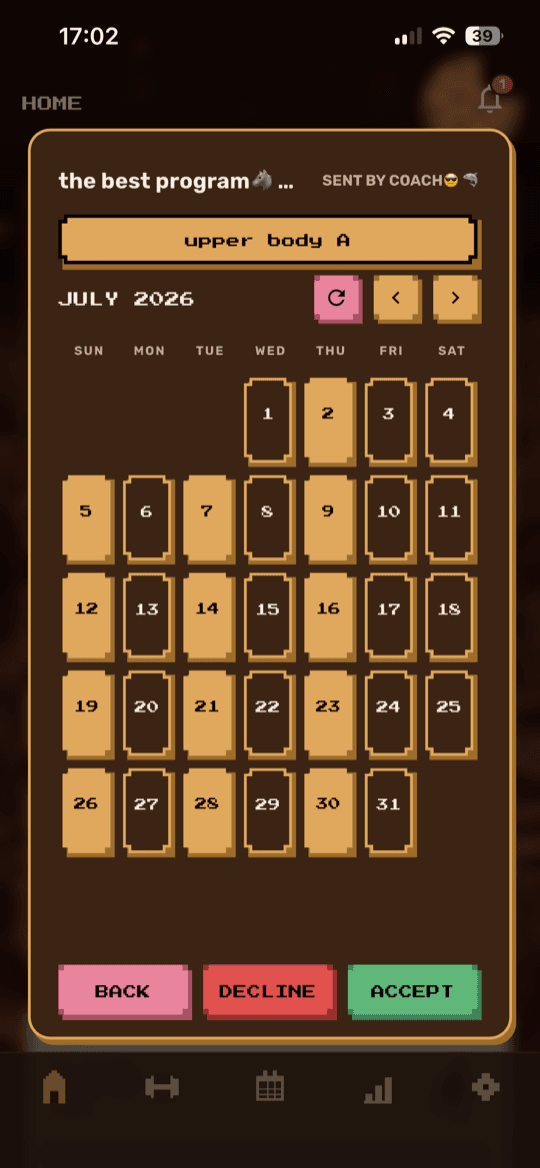
Accept
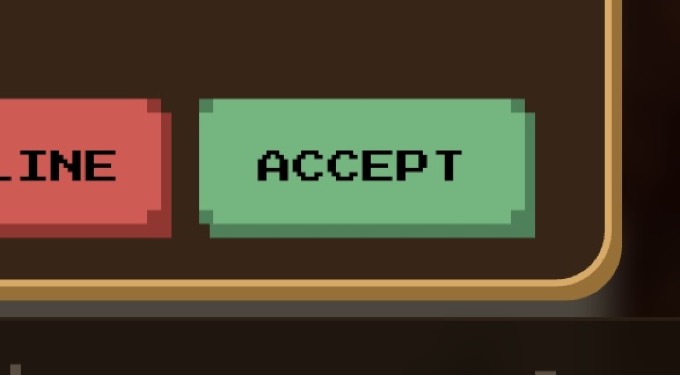
Review the scheduled workouts on the calendar, then tap Accept.
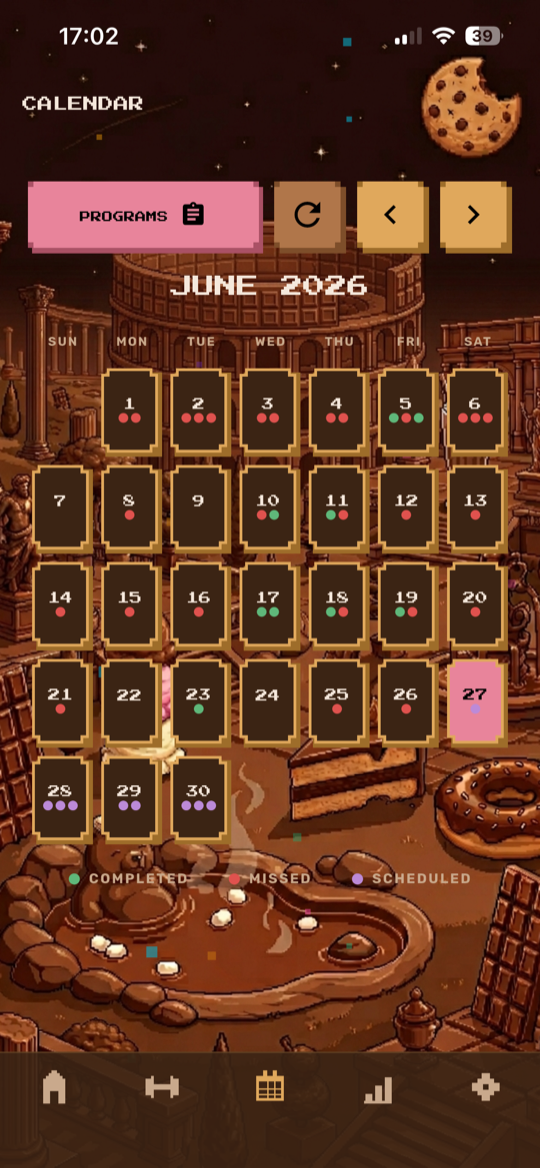
It's on your calendar
Each session is now scheduled — train it and it ticks over to completed.